
In vRealize automation, export and import of blueprints is an easy way to share the blueprints across multiple locations of an organisation.
Use below steps to export blueprint from vRealize Automation using cloud client.
- Login to vRA appliance server using “vra login userpass –tenant “.

- List the current content list on vRA appliance to get required fields like Content ID & Content Type for exporting the blueprint.

- Run below command to export the required blueprint to specified path.

- Exit from the cloud client interface

- Navigate to path where blueprint is exported & extract the .zip file.

- Once extracted, we can open .yaml files with wordpad to see the information about the blueprint.

Follow below listed steps to import blueprint to vRA.
- Login to vRA and run import command as in below screenshot

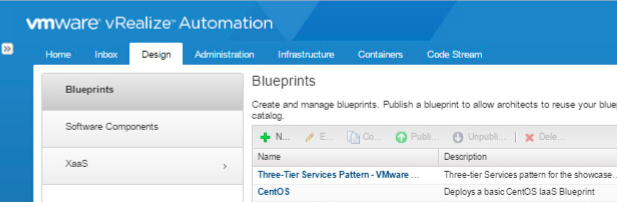
- Verify that imported blueprint is visible in the vRA portal.
- To test it further, you can request the blueprint service from catalog and verify successful delivery of the service.


 Virtual Maestro
Leave a comment