
Recently I came across the information that client integration plugin for vSphere 6.5 release. We used to install client integration plugin in previous releases for performing activities from web client such as:
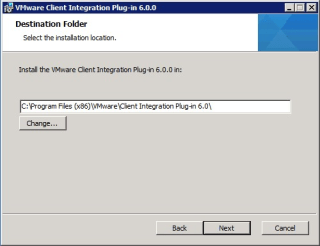
- Datastore File Upload/Download
- Launching VM console
- Using Windows Integrated authentication checkmark on login page
- OVF templates Export/Deploy
- Content Library Import/Export

So I got curious about the tasks that we used to perform with the help of this plugin. I searched through documentation for more information about this.
The Client Integration Plug-in is no longer required. With vSphere 6.5 release, the VMware Enhanced Authentication Plug-in replaces the Client Integration Plug-in. The Enhanced Authentication Plug-in provides Integrated Windows Authentication and Windows-based smart card functionality. These are the only two features that are carried over from the previous Client Integration Plug-in. Install the plug-in only once to enable all the functionality this plug-in delivers.
If you install the plug-in from an Internet Explorer browser, Internet Explorer identifies the plug-in as being on the Internet instead of on the local intranet. In such cases, the plug-in is not installed correctly because Protected Mode is enabled for the Internet. We must first disable Protected Mode and enable pop-up windows on Web browser.
The Enhanced Authentication Plug-in can function seamlessly even if the Client Integration Plug-in is installed on the system already from vSphere 6.0 or earlier. There are no conflicts if both plug-ins are installed.
Procedure to install Enhanced Authentication Plugin:
- Open a Web browser and type the URL for the vSphere Web Client.
- At the bottom of the vSphere Web Client login page, click “Download Enhanced Authentication Plug-in” link.
- If the browser blocks the installation either by issuing certificate errors or by running a pop-up blocker, follow the Help instructions for your browser to resolve the problem.
- Save the plug-in to your computer, and run the executable.
- Step through the installation wizard for both the VMware Enhanced Authentication Plug-in and the VMware Plug-in Service which are run in succession.
- When the installations are complete, refresh your browser.
- On the External Protocol Request dialog box, click “Launch Application” to run the Enhanced Authentication Plug-in.
Post completion of setting up the plugin, the link to download the plug-in disappears from the login page bottom area.


 Virtual Maestro
Leave a comment